



How to use our AI rubber stamp tool?
Step 1: Enter a Clear Design Description
Start by typing a short but clear sentence describing the image you’d like on your stamp. Think in simple, specific terms — for example:"Line art of a cat sitting on a stack of books""Vintage sunflower with engraved detail"
✅ Tips for best results:
- Keep it under 15 words
- Use keywords like “line art,” “silhouette,” or “stamp-style”
- Avoid emojis or special characters
- Think about how it would look as a single-color image (black on white)
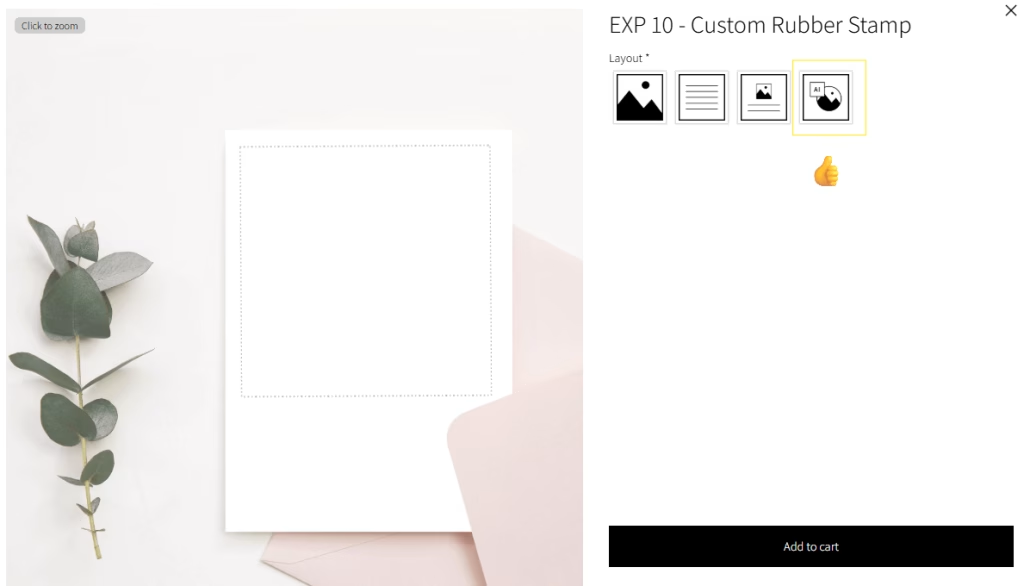
click the AI symbol on products that show to the option
Step 2: Adjust Layout & Placement
Once your image is generated, you can adjust the placement within the stamp area. Use the on-screen tools to resize, move, or rotate the design so it fits perfectly.
📏 For round stamps: center your image and leave some space around the edges.
📐 For rectangular stamps: try to keep the layout balanced for best stamping results.
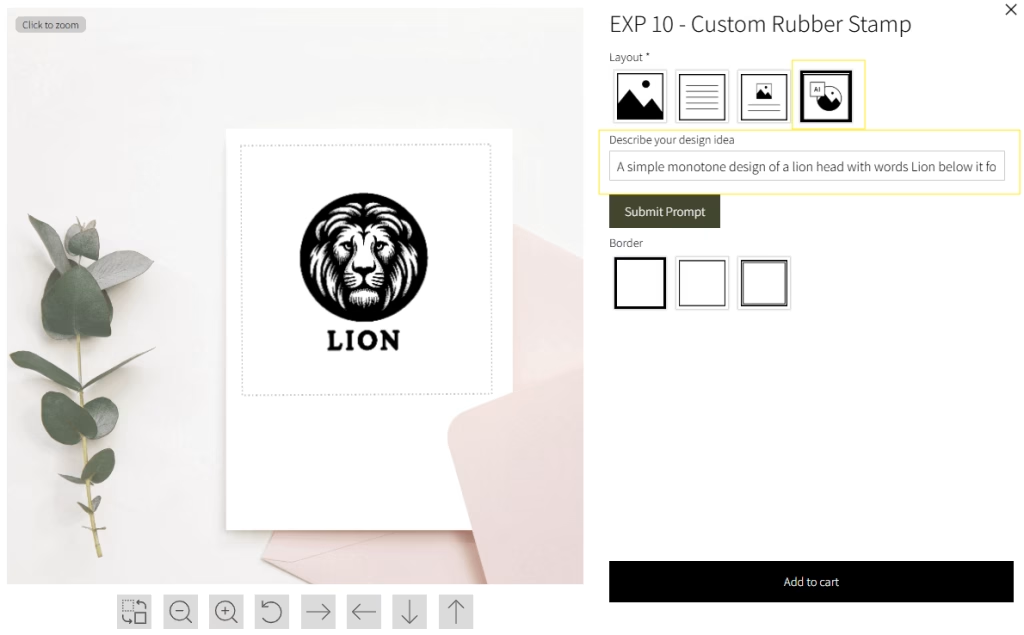
Describe your design
idea
Step 3: Add Text (Optional)
If you’d like to include text (like a name, business, or address), you can add it below or around the image. Choose a font that’s bold and legible — avoid thin or script fonts for very small stamps, as they may not stamp clearly.
✅ Stamp text tips:
- Use ALL CAPS for clarity (e.g., JOHN SMITH)
- Stick to short lines of text — no more than 25 characters per line
- Avoid using extremely small fonts
Step 4: Preview Your Stamp Design
Once your design looks good, check the preview window to make sure everything fits and is legible. You’ll see a realistic mock-up of how your rubber stamp will look.
If needed, go back and make changes to the image or text before finalizing your design.
Step 5: Add to Cart & Order
When you’re happy with your custom design, click Add to Cart and continue with checkout. We’ll take care of the rest — your stamp will be made exactly as shown in the preview.
🛠️ Important Notes for Best Results
If you’re unsure what to type, try phrases like:"Minimalist leaf pattern""Line art dog face""Retro camera icon"
The AI creates a single-color image suited for rubber stamp production — not full-color or grayscale designs.
Avoid uploading or typing in complex designs with too much detail — keep it simple for the best stamp impression.